

Google Maps Rankings Dropped? Check Your Ranking Radius
Diagnose a Google Maps ranking drop with matched locations, report settings and profile checks. Includes a shrinking-radius example and an agency comparison sheet.




The short answer
First, check whether the listing is still available. If it is, compare the same search at the same locations to see where positions fell. Check the scan settings and individual results before changing the profile. Then fix confirmed problems and track whether enquiries changed.
A Google Maps ranking drop can mean losing a few positions in one neighborhood or disappearing from searches across town. Start by finding out which happened. A single average won’t show you the difference.
Here, “ranking radius” means the area where a listing appears for a particular search. Google includes distance among its local-ranking factors, measuring how far each business is from the person searching.
On this page
1. Check whether the listing is still available
Open the business’s direct Maps link and confirm the branch. If the listing won’t open, sign in to the owner account and check its status before investigating individual keywords. Look for a suspension or verification notice, and review recent changes to the address, category and other business details.
If the owner account shows a suspension, follow Google’s suspension and appeal process. A red grid alone isn’t evidence of a suspension.
If the listing opens but appears lower for a service search, continue with the location comparison below.
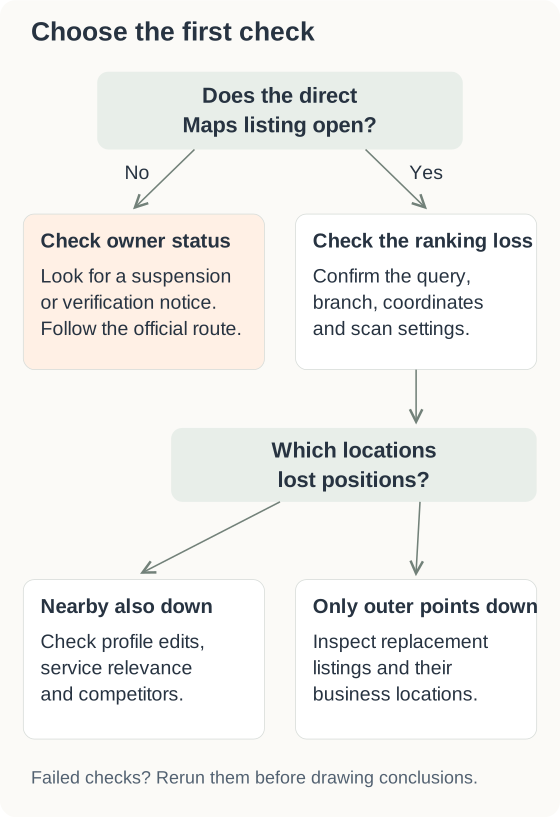
Without grid software, save the direct listing link and record dated searches from locations you can revisit. Keep the wording and device consistent. These checks give you individual observations; they don’t recreate an old grid you never collected. If there’s no reliable earlier record, start a baseline now.
2. Compare matching locations and scan settings
Open the old and new reports side by side. Check:
- Search term: Exact wording and language. “Plumber” and “emergency plumber” need separate comparisons.
- Business: The same branch, checked by its address or listing identifier.
- Result type: Maps results, the local pack in Google Search or organic website results.
- Locations: The coordinates of each point.
- Scan setup: Provider, report version, device, number of results checked and whether each point completed.
- Timing: Run dates, time zones and whether the business was open.
A nine-point grid can cover different streets after you move its center. Match the coordinates, even when the grid looks the same size.
BrightLocal gives its report sections separate keyword and date settings. Changing the selection in one section doesn’t update the others. Check each section you’re using against its report documentation.
If the old settings are gone, save a new baseline. The ranking-grid guide explains the point labels and missing results.
3. Look at where rankings fell
Pick a point where the business fell and open the saved results from both dates. Write down which listings moved ahead and where they’re based. Check that the tool found the intended branch of your business, too.
Where nearby rankings held, concentrate on the competitors appearing at the outer points. Their addresses help you see whether closer businesses took those positions.
Losses near the business deserve a wider check: listing availability, recent profile edits, service relevance and competitor changes. If only “emergency plumber” weakened, for example, confirm that the business still offers emergency work and that the profile and linked page describe it accurately.
Rerun failed points. For completed scans, repeat the affected locations with matching settings to see whether the losses persist.
In their October 31 conversation, Edward Sturm and Matt Hammerton reported losses farther from selected legal and home-service businesses. Those reported cases are a reason to inspect your own results. They don’t establish the cause of a drop in your account.
4. Describe the loss using actual positions
Here’s a fictional example from the article’s downloadable sample data.
It follows one plumbing branch, one Maps query and nine fixed points. Both scans finish and check the first 20 results using matching settings.
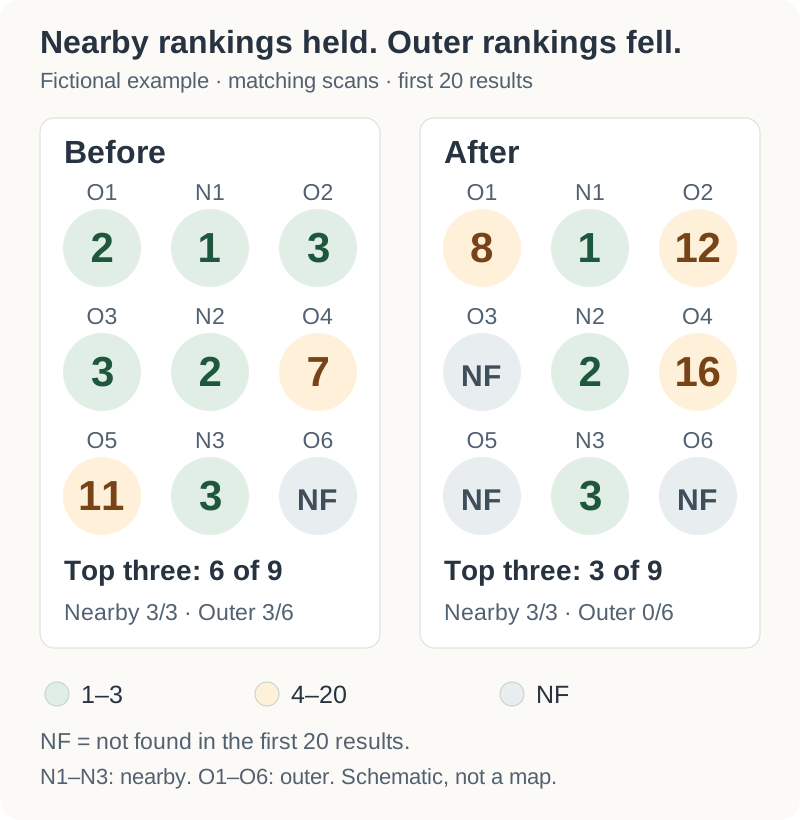
The three nearby points stay at positions 1, 2 and 3. Among the six outer points:
- Outer point 1: Position 2 falls to position 8.
- Outer point 2: Position 3 falls to position 12.
- Outer point 3: Position 3 becomes “not found within the first 20 results.”
The remaining three outer points were outside the top three in both scans.
Across the grid, top-three visibility fell from six of nine locations to three of nine: 66.7% to 33.3%, a decline of 33.3 percentage points. That measures the sampled locations. Customer numbers and enquiries need their own comparison.
Keep the point-level changes in the local SEO reporting template so the next report can follow the same locations.
If only the average changed, check its calculation
BrightLocal’s Local Search Grid documentation says a dash means the business didn’t appear in the top 100 results at that point. When calculating the average, it counts that point as 101.
The 101 is a value used in the calculation. The scan stopped at 100, so it hasn’t established the business’s actual position beyond that.
For a made-up calculation, keep two observations fixed: position 2 and “not found.” Change only the score assigned to “not found.”
Assign it 21:
(2 + 21) ÷ 2 = 11.5
Assign it 101:
(2 + 101) ÷ 2 = 51.5
The average has gone from 11.5 to 51.5 without either observation changing.
Check this when switching tools or report versions. Keep actual positions, missing results and failed checks alongside the average.
5. Correct the problem you can verify
Start with a confirmed error: an incorrect category, outdated hours or a website link pointing to the wrong branch. Check the details with the owner and correct the record.
If a service page barely explains what the business offers, improve that page using the keyword and page-mapping guide. Before adding a neighborhood page, work out what a customer there needs to know and whether an existing page already answers it.
The same applies to service areas. Google describes them as the places where a business provides its products or services. Adding more towns to the profile doesn’t demonstrate that the business will rank in those towns. Keep the information accurate using Google’s service-area guidance.
Opening another branch requires a much stronger case. There are staffing costs, customer demand and premises to consider, as well as eligibility for a Business Profile. Google excludes mailing addresses where the business doesn’t operate, and coworking offices have requirements for signage, customer access and staffing. See its business representation guidelines.
6. Check whether enquiries changed
Pull the call logs, received form submissions and bookings for comparable periods. Match the weekdays and note closures. Where the records identify the source, check whether enquiries from Google fell alongside the rankings.
Test the contact route yourself. Call the listed number and submit a clearly labeled test enquiry through the form. Confirm that both reach the business.
Google Business Profile’s “Calls” metric counts clicks on the call button. Use the phone records to check which calls arrived and became qualified enquiries. Google explains the metric in its performance documentation.
Search Console can help with a separate drop in website search traffic; it doesn’t replace a comparison of Maps results at fixed locations.
Save the exports, confirmed errors, changes made and enquiry figures in the ranking-drop brief. Set the next check date so you can see whether the same locations recovered after the corrections.